
What Things To Consider When Buying PC Monitors?

Are you looking for PC monitors and want to buy computer monitors on sale? Here is everything you need to know to find a PC monitor for gaming, business, or study.
We stare at the computer screen for the majority of the day; eyes can get exhausted if the screen is old and fuzzy. Anything you do on your device will appear cloudy if you don’t have the right display. Given the time the average user devotes staring at a pc monitor, a wrong selection can make work less productive and may be hazardous to your eyesight and neck.
It is critical to choose a model that is appropriate for you and your needs. However, not everybody thinks in the same way. Some buyers prioritise a fantastic display, while others prefer features and connectivity. Let’s go over what you need to understand to buy your next PC monitor.
Buying Guide For PC Monitors
With the emergence of flatscreens & LED technology, as well as the latest curved gaming monitors, there are far more choices for a monitor than even a year ago. Always try to buy cheap PC monitors or PC monitors on sale for your business, this is a part of smart shopping. Following are the factors to be considered when looking for a PC monitor.
Budget
Recognizing your financial plan is the first factor you should consider when shopping for computer hardware. PC Monitors’ prices can vary greatly, and some functions are simply not available below a certain price. Knowing how much money you have to spend allows you to quickly narrow down your potential alternatives and focus on features that are within your price range. Most notably, this will allow you to emphasise the features that are most important to you without crossing your budget.
Size Of Monitor
When looking for a new monitor, screen size is an important consideration. You want something small enough to fit on your workstation while providing more than enough real-time screen. The monitors range in size from 23 to 29 inches. A larger monitor might be helpful if you play a lot of games or don’t have a TV, but it might be overkill for most productivity scenarios.
The majority of users will be perfectly satisfied with a screen size ranging from 24 to 30 inches. These enable you to take full advantage of modern resolutions and chroma clarity. Monitor of these sizes can also accommodate a variety of different websites running simultaneously without the need for two screens, which is useful for many professionals.
Screen Pattern (Curved or Flat)
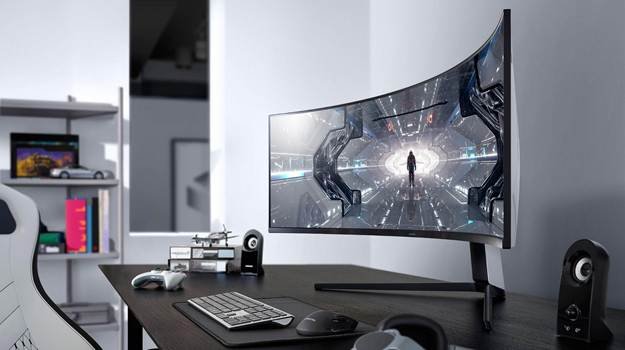
Curved monitors provide a greater degree of immersion than flat monitors. This is because they give an immersive display due to the curve. Curved monitors also lessen chromatic aberration because of light projection. This helps to alleviate eye strain caused by long periods spent in front of a computer screen.
Flat screens, on the other hand, have numerous advantages. Curved monitors, for example, are much more challenging to install on the wall than flat monitors due to their structure. Because of the design of curved screens, you may experience more glare.
Flat and curved monitors come in a variety of sizes, but their shape changes as they get larger. Height and tilt can be adjusted on both flat and curved monitors. Except for the curvature, most of the fundamentals are the same. Panel types such as VA and IPS are applicable to both flat and curved displays. Response times, refresh rates, bit colour depth, and overall technological underpinnings are essentially the same.
Type Of Panel
The panel type is a profoundly essential part of a monitor that will determine how it works and what kinds of tasks it is best suited for. There are numerous panel innovations used in the manufacture of monitors. When looking for a PC monitor, these types may be confusing. There are three types of panels:
Twisted Nematic designs (TN)
TN screens are manufactured and have been around for a long time. TN panels are quite inexpensive. TN panels continue to be the fastest, with a great record for displaying precise inky blacks area detail. The issue with TN panels is colour reproduction. Even if they have good colour reproduction when viewed directly, their viewing angles are limited. However, if you’re on a tight budget and enjoy playing games where reaction times are crucial, a TN panel is the way to go.

In-Plane Switching (IPS)
IPS panels are widely regarded as the best overall Display devices in terms of image quality, colour accuracy, and viewing angles. They are ideal for graphic design and other areas that support precise and reliable colour reproduction. Those who value colour-richness that is consistent across the screen could enjoy using IPS for movies, gaming and general desktop work.
Vertical Alignment (VA)
VA panels are a hybrid of TN and IPS panels. VA panels have excellent colour propagation and wide-angle angles than TN panels, but their response rate is slower. They are also not so sensitive towards the screen’s edges, making such screens suitable for movie buffs as well as general-purpose use. Some VA monitors have latency, which can result in motion artefacts and ghosting.
A high contrast ratio and narrow viewing angles are typical of a VA panel. When it comes to contrast ratio, VA panels far outperform IPS panels, so if you like to watch movies in the dark, you should probably get a Screen with a VA panel.
LCD or LED
LED is an abbreviation for light-emitting diode, and LCD is an abbreviation for the liquid crystal. The distinctions among LCD and LED technology are critical in determining what is best for your end goal and expenditure. All LED monitors are technically LCD monitors, but not every LCD screens are an LED. While the names may be perplexing to those sifting through specs in search of the best monitor, once broken down, it’s easier to understand than you think.
Both types of screens rely on liquid crystal advanced technologies to display images. Watches, calculators, and some MacBooks still use LCD screens. LCD monitors also have a wider range of viewing angles for greater comfort. LED monitors, on the other hand, tend to offer better dimming options without sacrificing picture clarity, which is especially important if you work long hours.
Unless price is your primary concern, there’s no reason to choose an LCD monitor over an LED, as LEDs outperform LCDs in almost every way. Although LED monitors are more expensive at first, they are more energy-efficient and have a longer lifespan. You’ll save money in the long run, making it a far better investment than an LCD screen.
Resolution
The next thing to consider is the resolution of the PC monitor. The pixel count is referred to as resolution, and the more pixels there are, the better the picture quality. The greater the resolution, the lesser the images and text can be, allowing for more content to be displayed on the screen. When working with graphics and images, higher resolution is preferable.
If you want to game and get the optimum outcome, keep in mind that higher resolutions will necessitate more graphics-processing power. The following are the various resolutions of available PC monitors:
Resolution 720p: It is a monitor resolution in the progressive style. It is the smallest of the HD-capable resolutions and is used by all major HDTV broadcasters.
Resolution 1080p: It is a non-interlaced monitor resolution that is marketed as the first to fully exploit HD’s full range of capabilities. These monitors provide high-resolution images. To name a few, 1080p is now the standard resolution for television, video games, internet streaming services, and smartphones.
Resolution 1440p: 1440p is four times more powerful than the standard HD variant. 1440p is not widely available, but it can be found primarily in the realms of computing and smartphones. It’s also far less expensive if you want extra features like faster refresh rates. It is also known as Quad HD.
Resolution 4K: Although 4K resolution is named after its lateral pixel count, it is equivalent to a pixel density of 3840 x 2160 on monitors. 4K resolution too has four times the number of pixels as 1080p. It is a high-resolution display resolution that can be found on high-end televisions and computer monitors.
Contrast Ratio
Contrast ratios indicate the difference between how white and black a monitor screen can become. Better contrast ratios are a positive indication because they indicate that colours will be more distinct. However, there are various measurements for contrast ratios, and stated specs aren’t always reliable, so take everything with a grain of salt.
Monitor Ports
To attach a monitor to a computer, you can use one of several cables. It’s critical to ensure that the ports on your new monitor are congruent with those on your pc. If you own a prestige device, you may need some older-style ports in addition to the most recent, fastest ones. The most common forms of monitor ports and cables are HDMI, DisplayPort, USB-C, and VGA. Let’s go over them one by one.
HDMI: HDMI is an abbreviation for High-Definition Multimedia Interface. It is most likely the most widely used HD signal interface for transmitting high-definition audio and video over a single cable. There are four active types of HDMI cables that can be used to connect to a monitor’s HDMI port:
- HDMI Standard
- HDMI High-Speed Premium
- High-Speed HDMI
- HDMI ultra-high-speed
DisplayPort: DisplayPort (DP) is a newer connection (introduced in 2008) that is mostly found on high-end monitors. The DP connector is the best for an audio and video signal, and it can transmit 144Hz up to 4K. It has multi-monitor capabilities, allowing you to connect multiple PC monitors in a daisy chain connection or configuration. DisplayPort is classified into three types:
- DisplayPort 1.2
- DisplayPort 1.3
- DisplayPort 1.4
Type-C USB: USB Type-C is widely regarded as a substitute for traditional USB ports. It connects to both servers and devices, and it replaces a variety of electrical connectors such as HDMI, DisplayPort, and connectors. The USB-C cable is reversible, so you can plug it in either way. It outperforms its predecessors in terms of speed.
VGA: Video Graphics Array cables are now regarded as legacy technology because they are the only analogue video connector among the four main types (the others are digital). In today’s world, you’ll only need to use this port if you’re stuck with or need to reach older display devices.
Conclusion
With several specs and options to consider, selecting the best PC monitor for your needs and budget can be difficult. To know what to look for in a monitor, you must first understand which specifications are most crucial for your industry or use. Just make sure you don’t overspend on a screen with unnecessary features or buy one that lacks the specifications required to help your PC shine. Of course, before making your final purchase, you should read available reviews from experts.
Which is best among LCD and LED PC monitors?
When compared to LED, LCDs consume more power and have lower contrast. With LEDs, the same screen resolution can have more pixels. Also, if your viewing angle is distinct in LCD, you may notice a distortion in the image. In comparison, LED is unquestionably a better choice.
Is LED better for your eyes than LCD?
When it comes to PC monitors, LED monitors usually offer improved flickering options without compromising picture clarity, which is especially important if you work long hours. Eye strain can take place in as little as 90 minutes, so an LED monitor is good for your eyes if that is your primary concern.
Is 4K worth the extra money over HD?
The extra pixels give 4K PC monitors an advantage when it comes to colours as well. They can produce far more energetic colours than HD monitors, as well as deeper shadows. Remember that resolution is only one component of overall picture quality; also consider HDR reliability, brand, screen size, warranty, and other factors.
What size PC monitor do I require?
The suitable size for a PC monitor is determined primarily by its resolution and the distance you sit from the screen. Most people believe that 1920 by 1080 is appropriate for monitors up to 25 inches in size; 1440p is ideal for 27-inch monitors, and 4K is ideal for 30-inch and larger monitors.
Are all computer monitors compatible?
Yes, in fact. Unless you’re using a CRT monitor, all PC monitors and TVs are congruent with all systems, because all operating systems, games, and applications are coded to endorse whatever resolution the system itself supports.
Is it possible to connect a monitor to my laptop?
Yes, a PC monitor can be linked to a laptop. Most modern laptops include at least one HDMI port for connecting to a computer monitor. All you have to do is get an HDMI cable, connect one end to your laptop, as well as the other end to the screen.
Is it better to look up or down at a monitor?
You should avoid looking up or down at your screen. Ideally, your eyes should be aligned with a point on the screen that is 5-10 cm below the monitor’s top edge. The PC monitor screen’s centre should be about 17-18 degrees below eye level.
How much larger is a 27-inch monitor than a 24-inch monitor?
If you put them side by side, the diagonal distinction will be about 7.5 cm. When you hold the 27-inch in your hand, however, you will notice that it is quite large. 27-inch PC monitors provide a little more space and are an excellent choice if you use your PC both for work and play.
Is it true that connecting a monitor to a laptop slows it down?
If the PC monitor to which you’re connected has a better definition than your laptop screen and you play the game at that higher resolution, your performance may suffer.
Can a monitor be used with a phone?
Yes, several Android phones can connect to a pc monitor. To make a connection, the mobile should have an HDMI connector, and there is a need to purchase an HDMI cable. After that, you’ll be able to enjoy watching your device’s content on a larger screen.